Bodyswaps Support
The section below will help students to use their own initiave to navigate the bodyswaps system.
How to I access Bodyswaps?
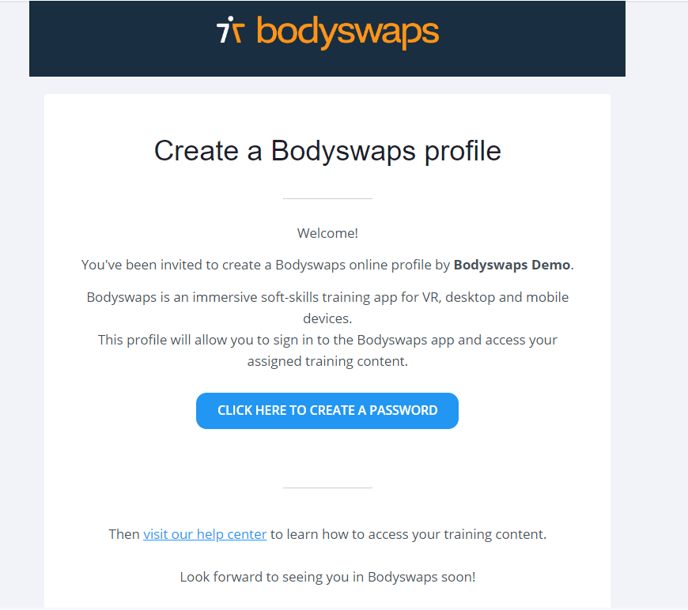
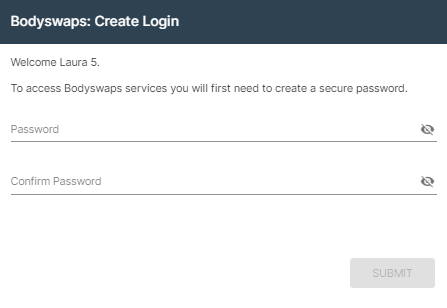
When you first see Bodyswaps mentioned in your placement, you will be prompted to access your emails. Here you will find a registration invitation email. You need to follow the instructions on the email to set up your account.
On the invitation email, please click the link “click here to create a password” to finalise your account registration. Your email will be your username and you can access the Bodyswaps Go website here.
Registering for a Bodyswaps account gives you the chance to browse content at your own pace and come back to top up your skills.
The team at Health Academy will have set up the ‘class’ which will have the modules that you have been allocated.
You’ll need the Bodyswaps app and run it before you can join. There are versions of the app for a wide range of devices including, iOS and Android mobile devices, as well as PC and Mac. We would recommend that you run this on your mobile phone.
| Platform | Available App Version | App Store Link | Direct Download Link (.apk or .exe) | Tested models |
|---|---|---|---|---|
| iOS | 2.15 | iOS App Store Link🌐 | iPhone, iPad | |
| Android | 2.15 | Android App Store Link🌐 | Multiple | |
| Windows | 2.15 | Windows App Store Link🌐 | .EXE File for Windows 🌐 | Multiple |
| Mac | 2.15 | Mac App Store Link🌐 | Multiple |
After signing in to Bodyswaps Go, click the ‘My Modules’ tab on the left-hand side and either:
a) Get Access Code (top right-hand corner) to access the full library.
This will generate a code that you can enter into the Bodyswaps app.
b) Select a module and click ‘Actions’ and ‘Play Module’ to begin the selected module.
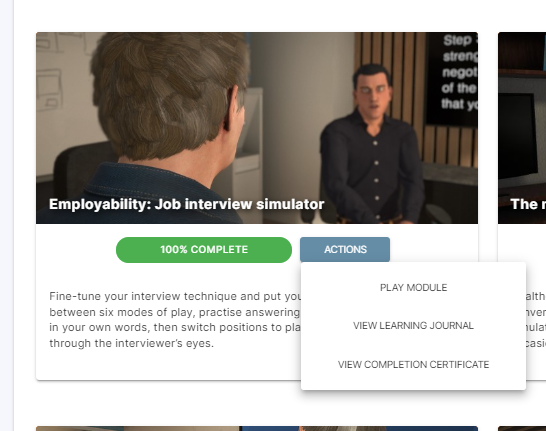
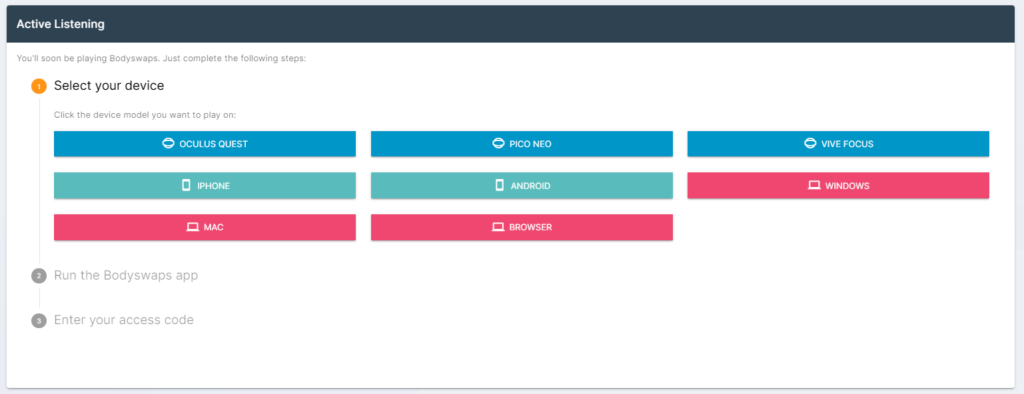
Next, follow the on-screen instructions to generate a code that you can enter into the app.
Note: you will have access to all the modules and pathways that have been allocated to you for the whole placement, there will be time allocated throughout the placement for you to complete each module and pathway, so you will not be expected to complete these all in one go. Please follow the guidance on when to complete these as they have been allocated at times in the placement where the module or pathway has most relevance.
The email will originate from admin@bodyswaps.co with the subject ‘Invitation to Bodyswaps’ (as shown below):
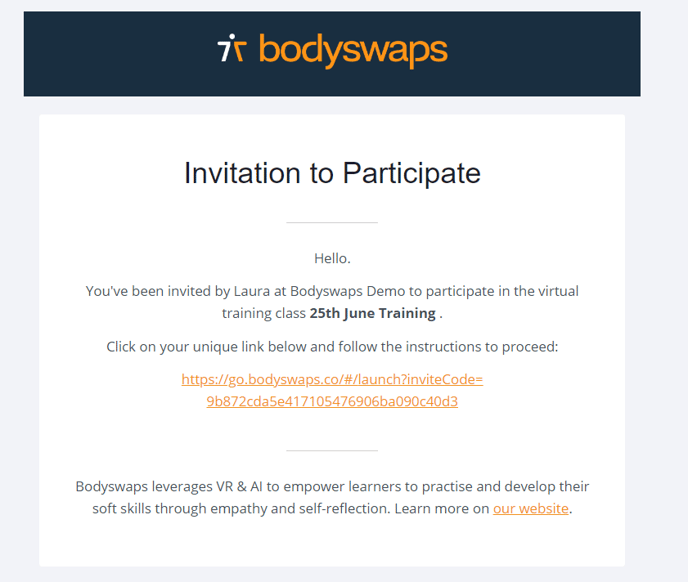
It contains a welcome message, your invite to the class and a link that you need to follow to generate a code you can enter into the Bodyswaps app.
Since you’re reading this, most likely you’ve already received it. However, if not please check your spam folder first, and then get in touch with supervision@healthacademyonline.co.uk who will arrange to resend this.
Run the Bodyswaps app you have installed. Accept the EULA and any security permission pop-ups that appear.
After a short moment you should see a “Welcome” screen with a keypad where you can enter a code (see below):
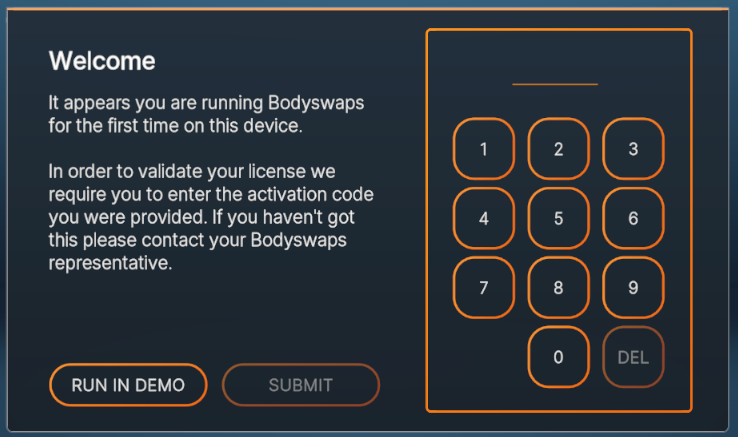
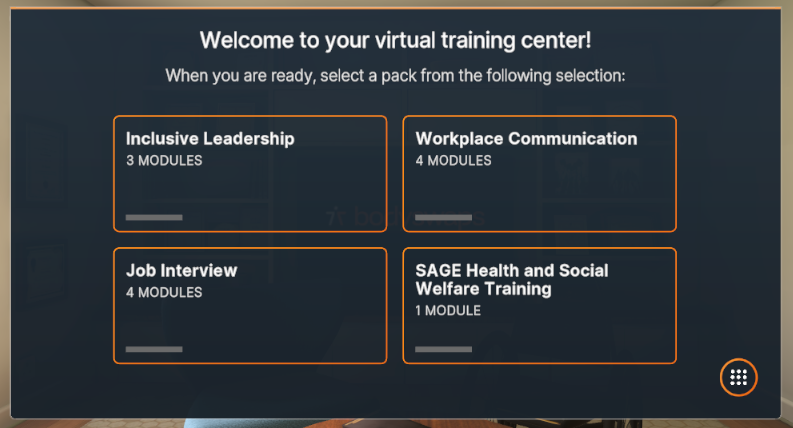
If you do not see the “Welcome” screen with the keypad, and instead see “Welcome to your Virtual Training Centre” and a list of four module categories (as shown in the image below) then click on the 9 dots icon in the bottom right hand corner which will take you to the enter code screen.
Generate a code
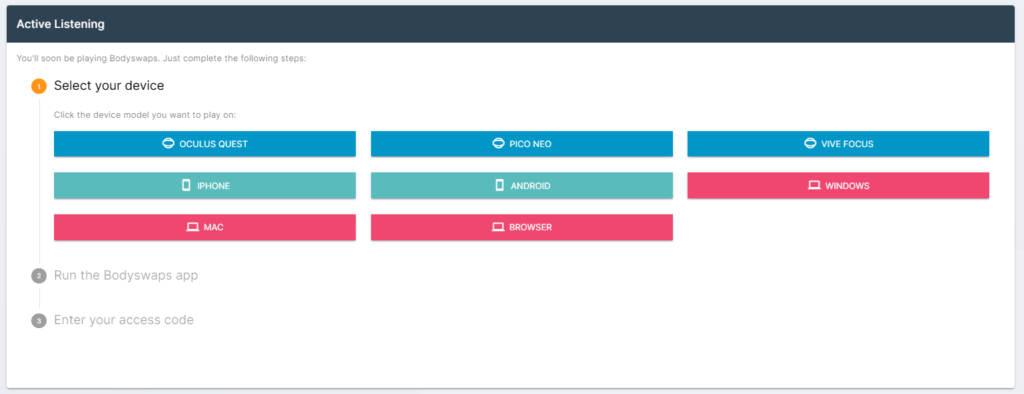
You’ll now need to enter the code you generated earlier. If you need to do it again you can click the link in the Bodyswaps invitation email. It should take you to a page where you can generate a code:
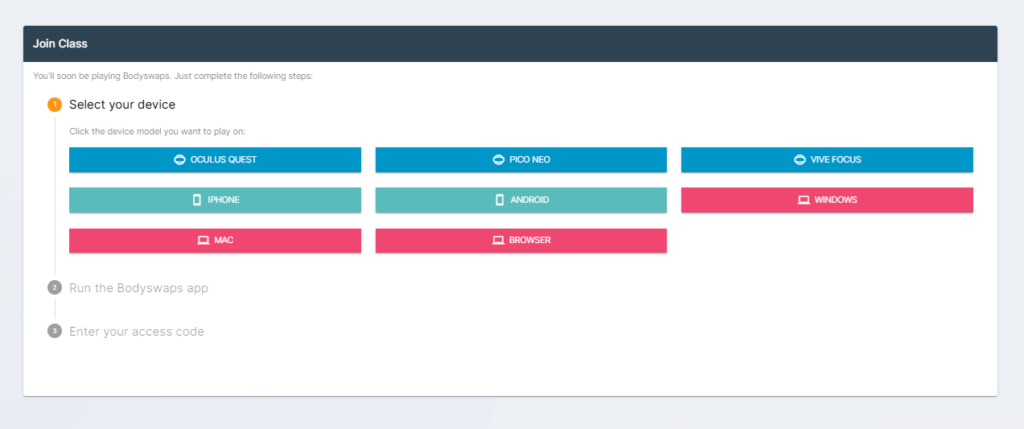
Click on the device you’ll be using, then run the Bodyswaps app on that device and click continue.
Enter the 6-digit number that appears on the enter code screen in the Bodyswaps app.
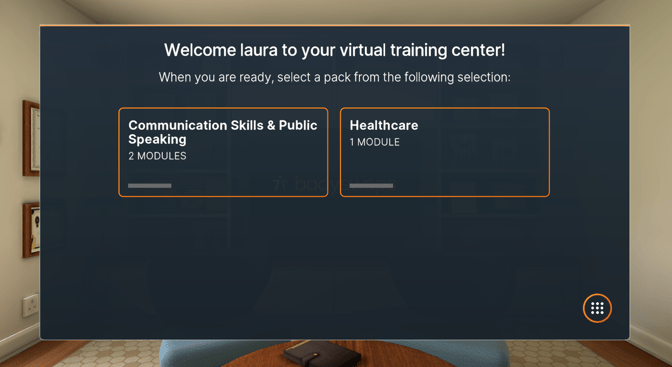
Next, you should see a screen with your name listed and the assigned modules available to start (as shown in the image below).
Once you have completed your session you can leave Bodyswaps – your facilitator will have been informed of your participation.
How can I access my assigned training modules?
After signing in to Bodyswaps Go, click ‘My Modules‘ tab on the navigation bar on the left hand side and either:
a) ClickGet Access Code (blue button, top right-hand corner of the Get Started box) to access the full library.
This will generate a code that you can enter into the Bodyswaps app.
b) Select a module, click the grey Actions button and then click Play Module.
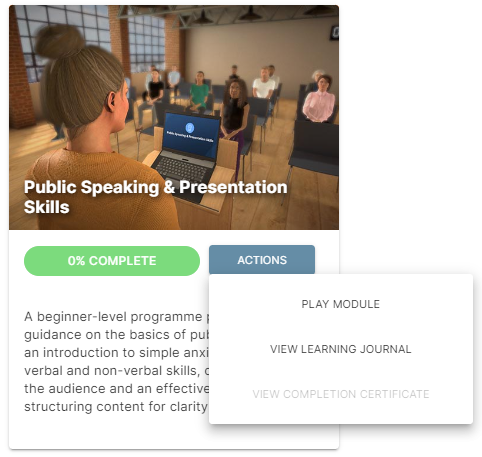
Next, follow the on-screen instructions to generate a code that you can enter into the app.
The code I was given isn’t working anymore
Details on how to request a new code
- Fill in a Support Form, make sure to indicate that you’re requesting a new code in the Ticket Name or Description. Please also include your organisations/college name.
- A ticket will be created automatically and shared with our Support Team who will respond immediately during business hours (Monday to Friday, 9am to 6pm UK)
If your issue is not covered in the FAQ above, please contact Bodyswaps support for any further assistance.